> ## Documentation Index
> Fetch the complete documentation index at: https://www.truefoundry.com/llms.txt
> Use this file to discover all available pages before exploring further.
# Azure OpenAI
> Add and configure Azure OpenAI models through TrueFoundry's AI Gateway
### Adding Models
This section explains the steps to add Azure OpenAI models and configure the required access controls.
From the TrueFoundry dashboard, navigate to `AI Gateway` > `Models` and select `Azure OpenAI`.
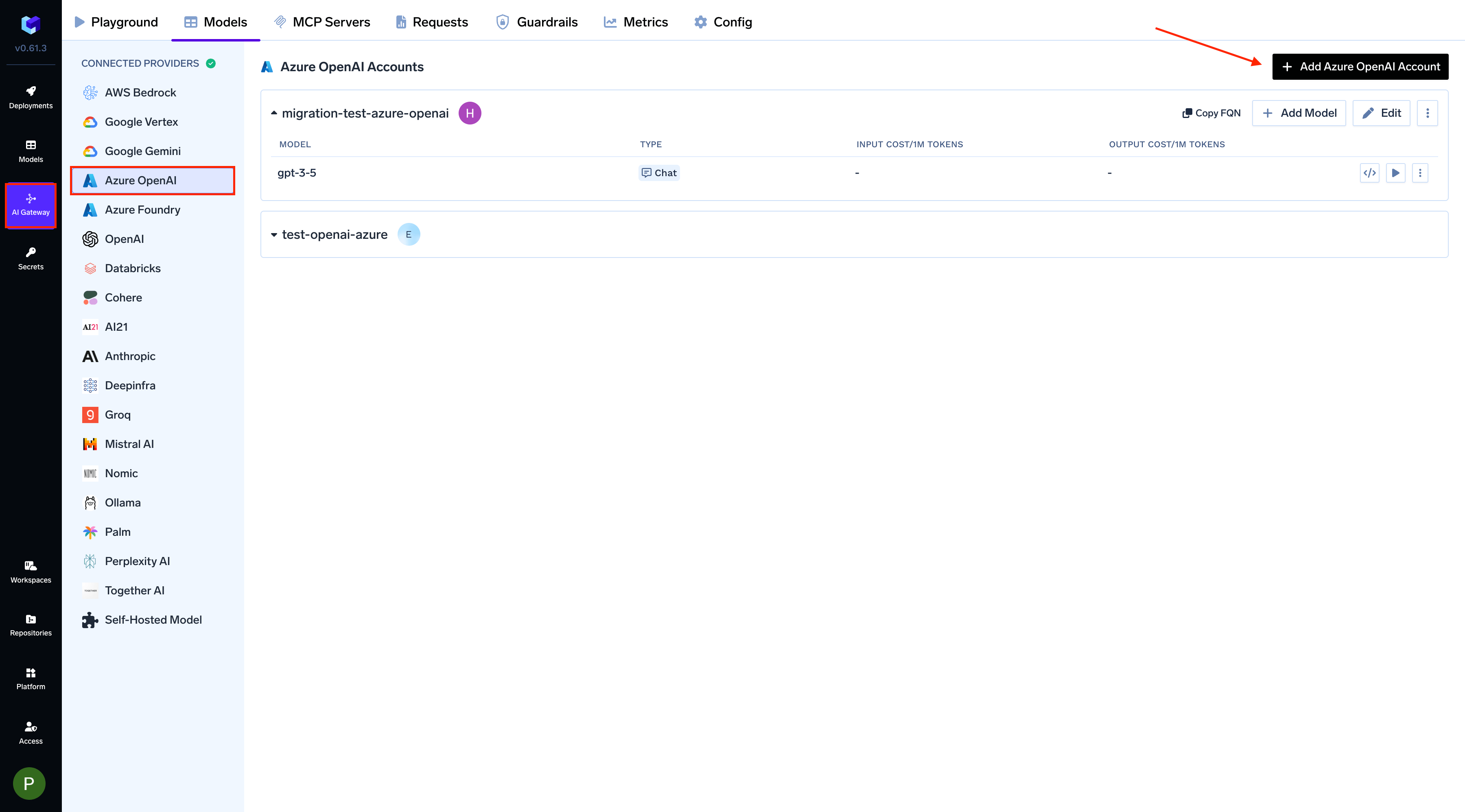 Click `Add Azure OpenAI Account`. Give a unique name to your Azure OpenAI account and complete the form with your Azure authentication details (API Key). For enhanced security, you can also use [certificate-based authentication](/docs/ai-gateway/azure-entra-certificate-auth), [client secret based authentication](/docs/ai-gateway/azure-entra-client-secret-auth), or [workload identity federation](/docs/ai-gateway/azure-entra-wif-auth).
Add collaborators to your account. You can read more about access control [here](/docs/ai-gateway/gateway-access-control).
Click `Add Azure OpenAI Account`. Give a unique name to your Azure OpenAI account and complete the form with your Azure authentication details (API Key). For enhanced security, you can also use [certificate-based authentication](/docs/ai-gateway/azure-entra-certificate-auth), [client secret based authentication](/docs/ai-gateway/azure-entra-client-secret-auth), or [workload identity federation](/docs/ai-gateway/azure-entra-wif-auth).
Add collaborators to your account. You can read more about access control [here](/docs/ai-gateway/gateway-access-control).
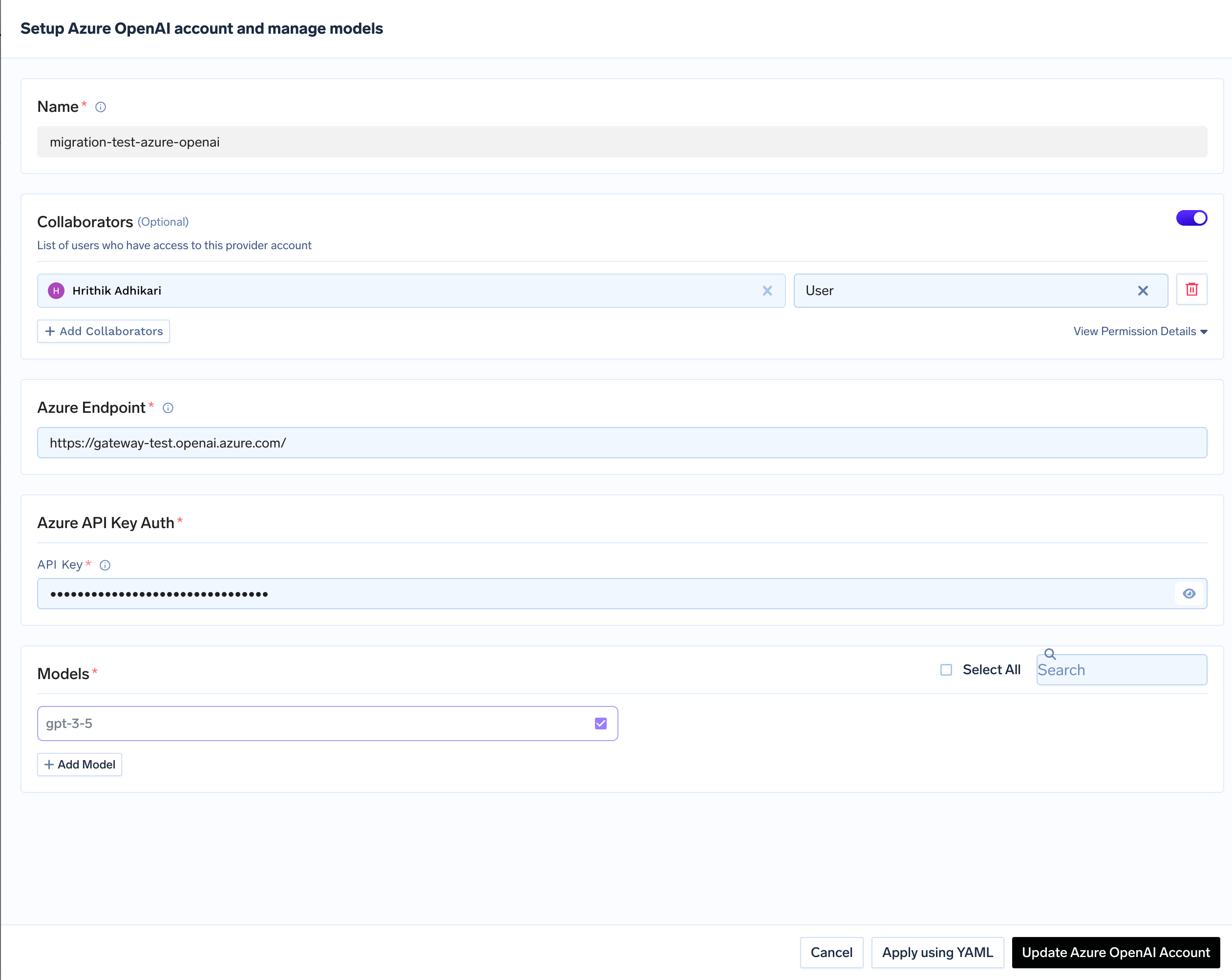 Click on `+ Add Model` to open the form for adding a new model. For Azure OpenAI, you don't select from a list. Instead, you add models based on your **deployments** in Azure. The `Model ID` in TrueFoundry corresponds to your **Deployment Name** in Azure. First, ensure you have deployed a model in your Azure OpenAI service. You can follow Microsoft's instructions [here](https://learn.microsoft.com/en-us/azure/ai-services/openai/how-to/create-resource?pivots=web-portal). Once deployed, you can find the deployment name in the `Deployments` tab of your Azure AI Studio.
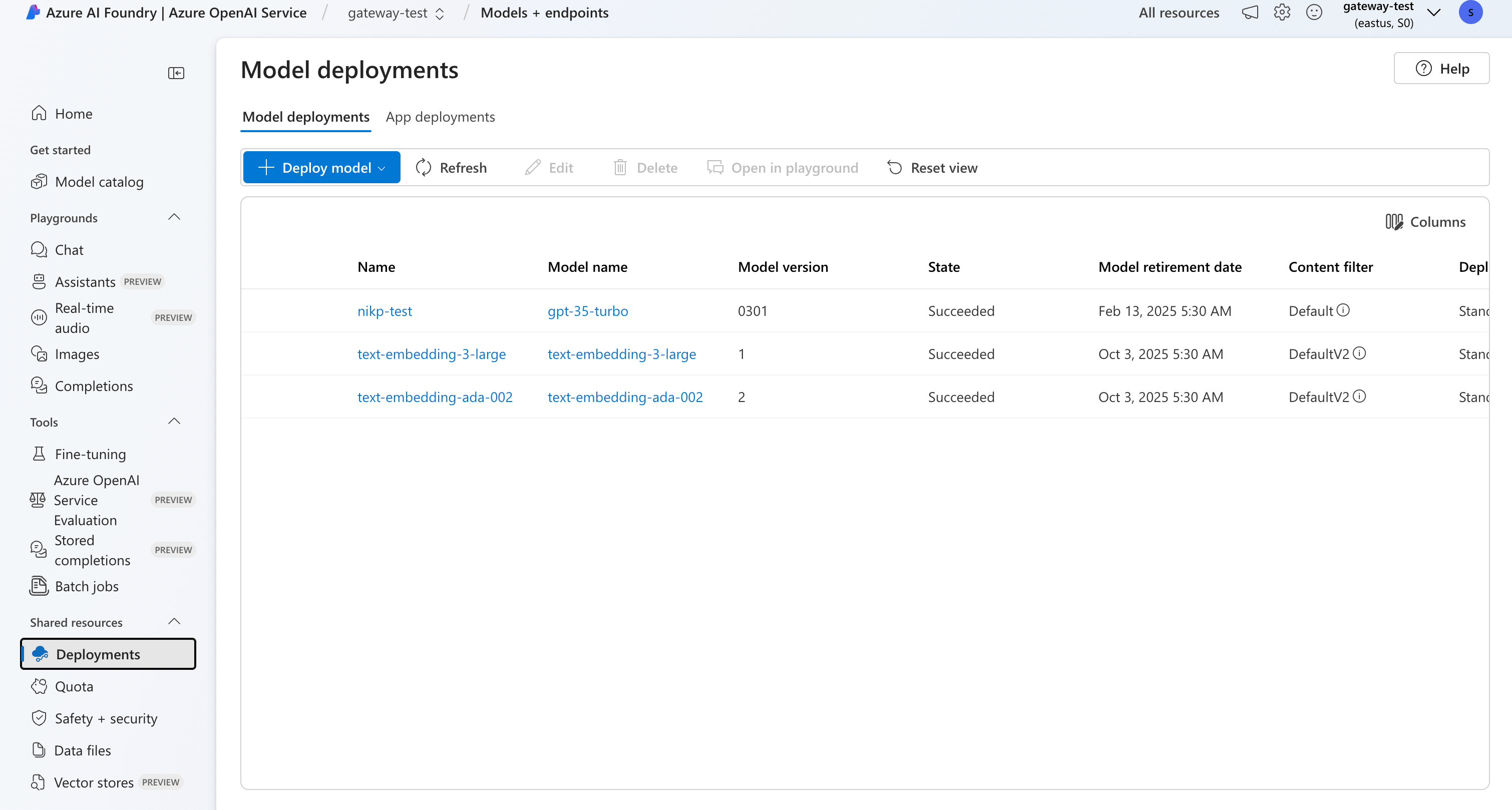 Use this deployment name as the `Model ID` when adding the model in TrueFoundry.
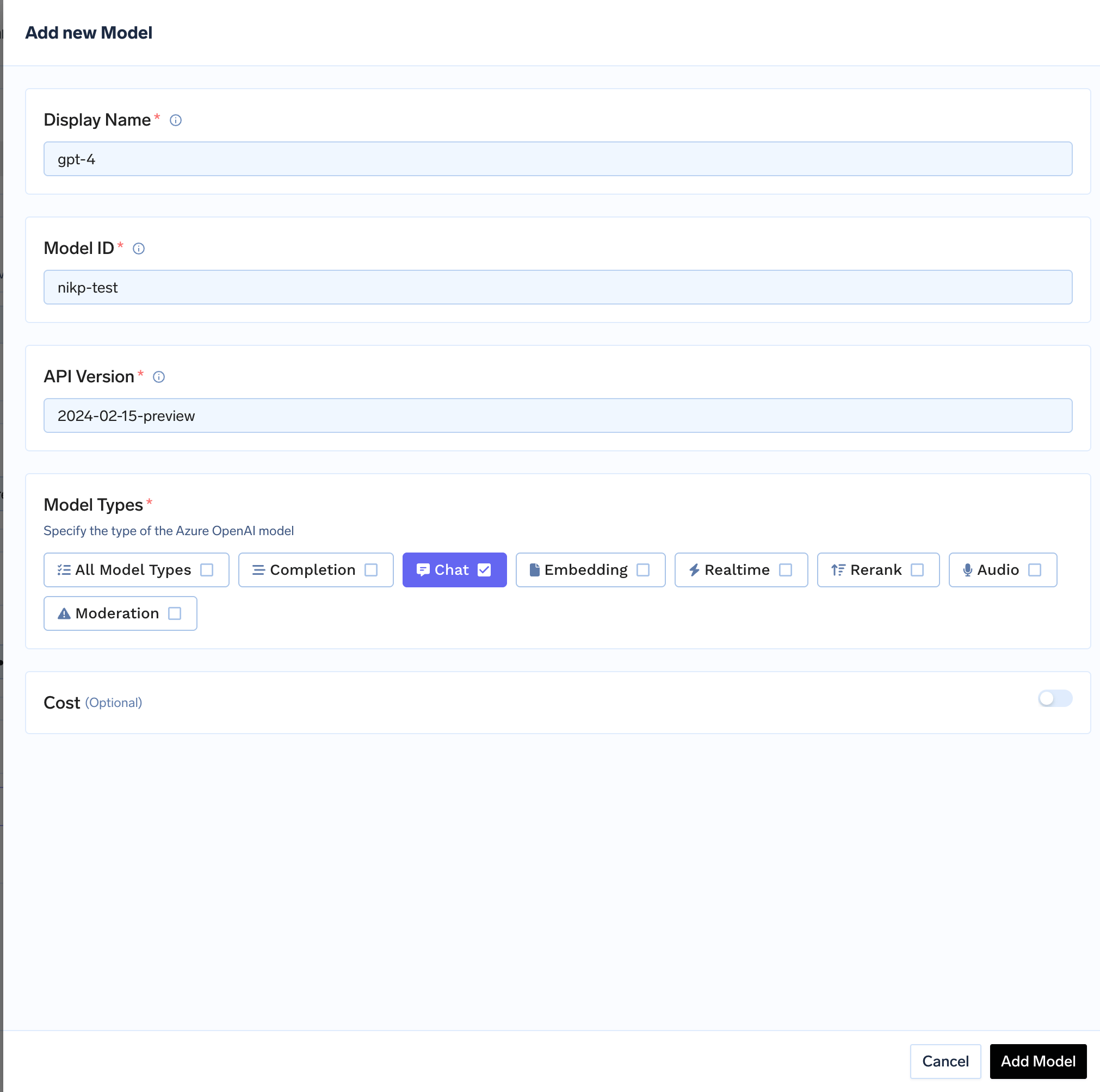 Azure OpenAI integration supports any OpenAI model that you have deployed in your Azure account.
### Inference
After adding the models, you can perform inference using an OpenAI-compatible API via the Playground or by integrating with your own application.
Azure OpenAI integration supports any OpenAI model that you have deployed in your Azure account.
### Inference
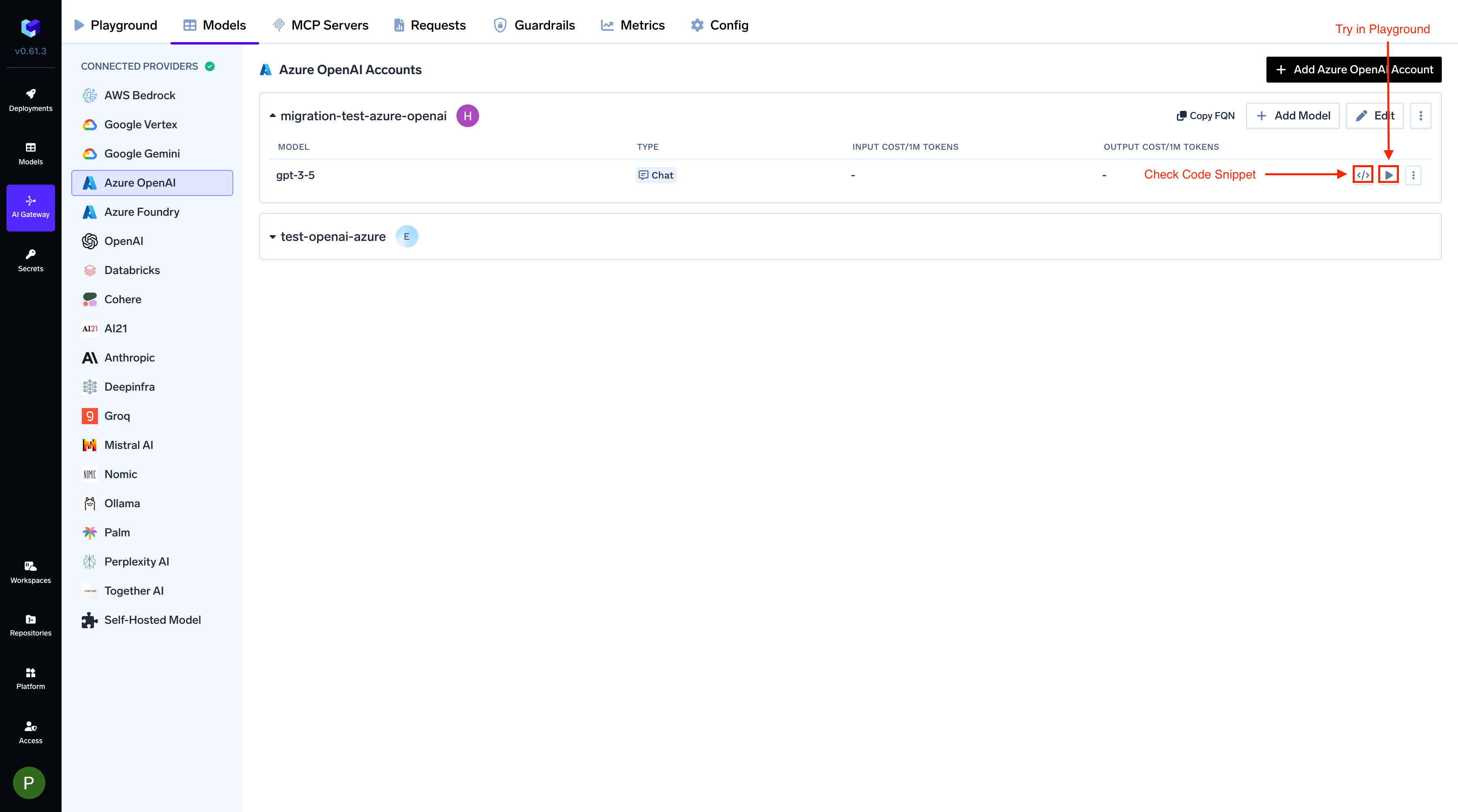
After adding the models, you can perform inference using an OpenAI-compatible API via the Playground or by integrating with your own application.