> ## Documentation Index
> Fetch the complete documentation index at: https://www.truefoundry.com/llms.txt
> Use this file to discover all available pages before exploring further.
# Azure Workload Identity Federation Authentication
> Configure keyless Workload Identity Federation for Azure OpenAI, Azure AI Foundry models, and Azure guardrails (PII, Content Safety, Prompt Shield)
Azure Workload Identity Federation is only supported on **self-hosted** deployments of the AI
Gateway (Gateway Plane only, or Control Plane + Gateway Plane). It does **not** work on the
**SaaS version of the Gateway**.
This guide explains how to configure Workload Identity Federation (WIF) using Microsoft Entra ID
for Azure OpenAI and Azure AI Foundry models in TrueFoundry's AI Gateway. Workload Identity
Federation lets the gateway authenticate to Azure **without any client secrets or certificates**. The
gateway's Kubernetes service account token is exchanged for an Entra ID access token through a
federated identity credential. The same authentication is supported for Azure AI Foundry-based
guardrails: [Azure PII](/docs/ai-gateway/azure-pii),
[Azure Content Safety](/docs/ai-gateway/azure-content-safety), and
[Azure Prompt Shield](/docs/ai-gateway/azure-prompt-shield).
If you prefer secret-based or certificate-based authentication instead, see
[Azure Entra ID Client Secret Based Authentication](/docs/ai-gateway/azure-entra-client-secret-auth)
or [Azure Entra ID Certificate Based Authentication](/docs/ai-gateway/azure-entra-certificate-auth).
## Prerequisites
* A [Microsoft Entra ID application](https://learn.microsoft.com/en-us/entra/identity-platform/quickstart-register-app)
registered in your Azure tenant
* Azure OpenAI or Azure AI Foundry resource deployed
* The TrueFoundry AI Gateway running on a Kubernetes cluster with a configured OIDC issuer URL, and
the namespace and service account name used by the gateway pod
* The Kubernetes service account used by the gateway must have permission to issue `TokenRequest`
resources for itself (the TrueFoundry-provided Helm chart configures this RBAC automatically)
## Azure Configuration
Navigate to [Azure Portal](https://portal.azure.com) > **Microsoft Entra ID** >
**App registrations** and select your application.
From the **Overview** page, note the following values:
* **Application (client) ID**
* **Directory (tenant) ID**
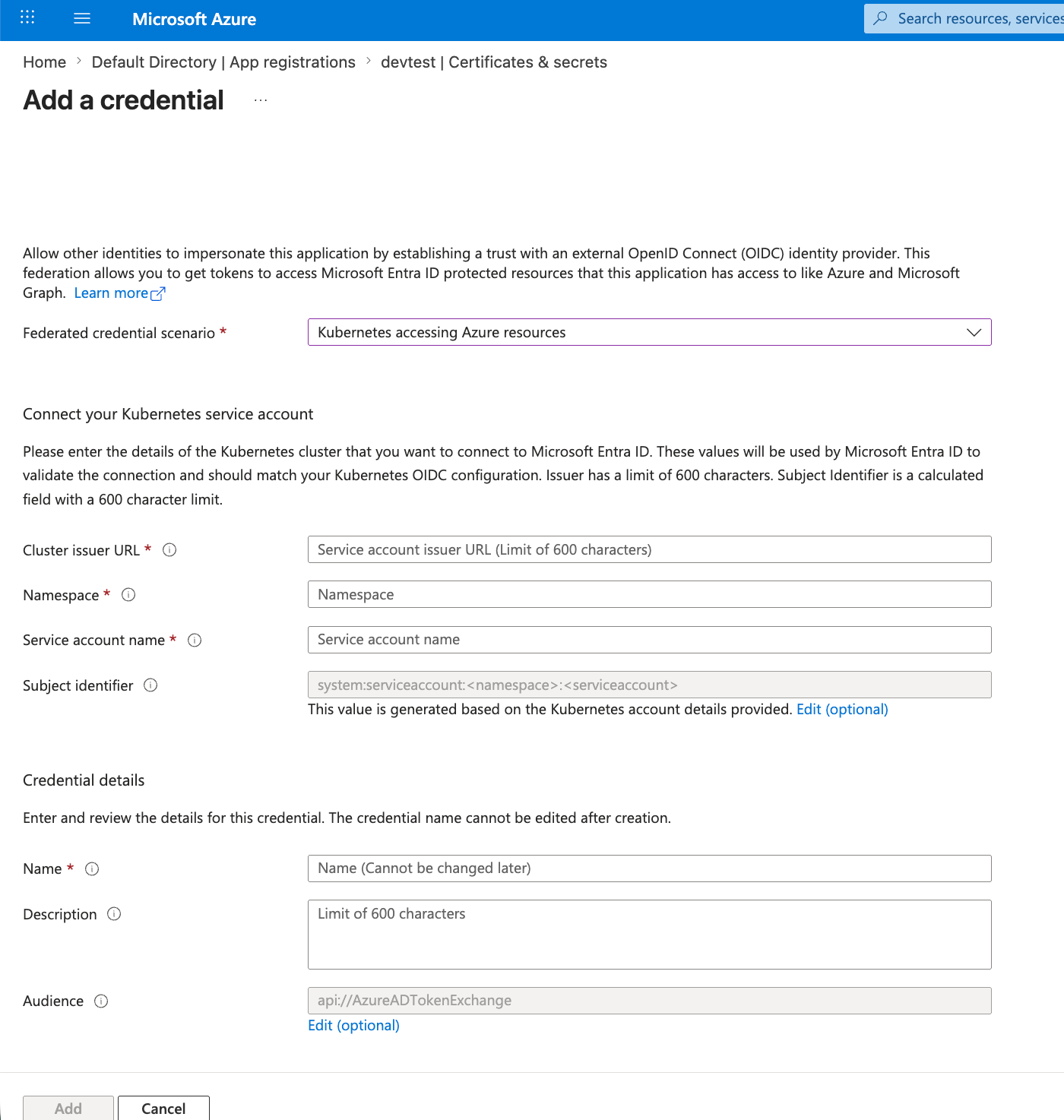
In your app registration, navigate to **Certificates & secrets** > **Federated credentials** >
**Add credential**.
For the **Federated credential scenario**, select **Kubernetes accessing Azure resources**, then
fill in:
Run these commands to look up the values before filling in the form:
```bash theme={"dark"}
# OIDC issuer URL
kubectl get --raw /.well-known/openid-configuration | jq -r .issuer
# Service account name: list pods to find the gateway pod, then inspect it
kubectl get pods -n
kubectl get pod -n -o jsonpath='{.spec.serviceAccountName}'
```
| Field | Description |
| -------------------- | ----------------------------------------------------------- |
| Cluster issuer URL | The OIDC issuer URL of the cluster running the gateway |
| Namespace | The Kubernetes namespace of the gateway pod |
| Service account name | The Kubernetes service account name used by the gateway pod |
| Name | A descriptive name for this federated credential |
Azure automatically builds the **Subject identifier** as
`system:serviceaccount::` and uses the audience
`api://AzureADTokenExchange`.
The namespace and service account name must match the gateway pod's service account
(the `K8S_SERVICE_ACCOUNT_NAME` the gateway is deployed with). If they don't match, the token
exchange will fail.
The **Cluster issuer URL** is your cluster's OIDC issuer (on Amazon EKS it looks like
`https://oidc.eks..amazonaws.com/id/EXAMPLED0123456789ABCDEF0123456789`). The
**Namespace** is where the gateway pod runs (commonly `truefoundry`) and the **Service account name**
is the `K8S_SERVICE_ACCOUNT_NAME` it is deployed with (defaults to `default`).
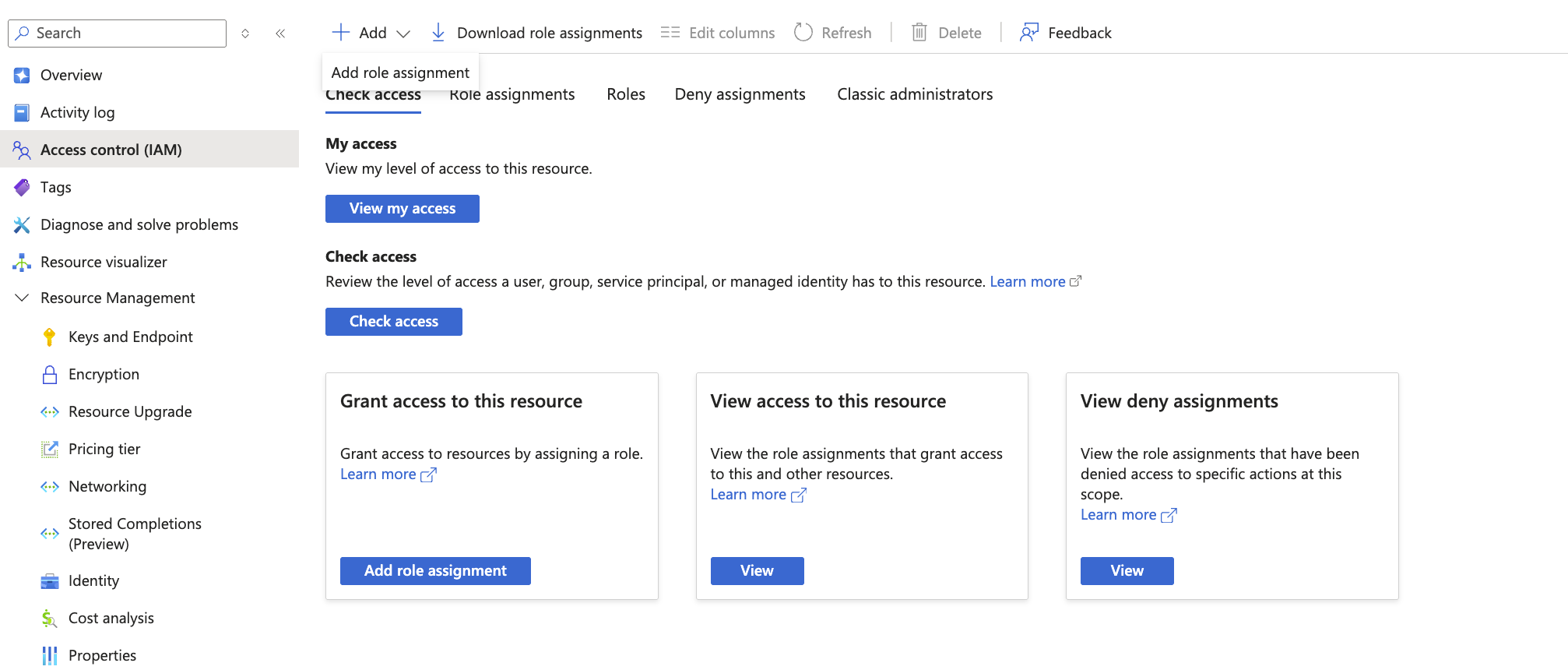
 Navigate to your **Azure resource** > **Access control (IAM)** > **Add role assignment**.
Assign **Cognitive Services OpenAI User** role to your app registration.
[Learn more about Azure OpenAI RBAC](https://learn.microsoft.com/en-us/azure/ai-services/openai/how-to/role-based-access-control)
Assign **Azure AI User** role to your app registration.
[Learn more about Azure AI Foundry RBAC](https://learn.microsoft.com/en-us/azure/ai-foundry/concepts/rbac-azure-ai-foundry)
Navigate to your **Azure resource** > **Access control (IAM)** > **Add role assignment**.
Assign **Cognitive Services OpenAI User** role to your app registration.
[Learn more about Azure OpenAI RBAC](https://learn.microsoft.com/en-us/azure/ai-services/openai/how-to/role-based-access-control)
Assign **Azure AI User** role to your app registration.
[Learn more about Azure AI Foundry RBAC](https://learn.microsoft.com/en-us/azure/ai-foundry/concepts/rbac-azure-ai-foundry)
 Role assignments may take a few minutes to propagate.
## TrueFoundry Configuration
Navigate to **AI Gateway** > **Models** > **Azure OpenAI**, then click **Add Account** and
select **Workload Identity Federation**. Fill in the following:
| Field | Description |
| --------- | ------------------------------------------------------ |
| Tenant ID | Directory (tenant) ID from app registration overview |
| Client ID | Application (client) ID from app registration overview |
No secret or certificate is required. The gateway exchanges its Kubernetes service account
token for an Entra ID access token using the federated identity credential you configured
above.
For Azure AI Foundry, authentication is configured **at the model level**, not the account
level. When adding a model under **AI Gateway** > **Models** > **Azure AI Foundry**, select
**Workload Identity Federation** as the authentication type and fill in:
| Field | Description |
| --------- | ------------------------------------------------------ |
| Tenant ID | Directory (tenant) ID from app registration overview |
| Client ID | Application (client) ID from app registration overview |
No secret or certificate is required. The gateway exchanges its Kubernetes service account
token for an Entra ID access token using the federated identity credential you configured
above.
Add your models as described in the [Azure OpenAI](/docs/ai-gateway/azure-openai) or
[Azure AI Foundry](/docs/ai-gateway/azure-ai-foundry) documentation.
Test the connection using the Playground to verify authentication works.
## Reference Links
* [Register an Entra ID application](https://learn.microsoft.com/en-us/entra/identity-platform/quickstart-register-app)
* [Workload identity federation overview](https://learn.microsoft.com/en-us/entra/workload-id/workload-identity-federation)
* [Configure a federated identity credential on an app](https://learn.microsoft.com/en-us/entra/workload-id/workload-identity-federation-create-trust)
* [Azure OpenAI RBAC](https://learn.microsoft.com/en-us/azure/ai-services/openai/how-to/role-based-access-control)
* [Azure AI Foundry RBAC](https://learn.microsoft.com/en-us/azure/ai-foundry/concepts/rbac-azure-ai-foundry)
Role assignments may take a few minutes to propagate.
## TrueFoundry Configuration
Navigate to **AI Gateway** > **Models** > **Azure OpenAI**, then click **Add Account** and
select **Workload Identity Federation**. Fill in the following:
| Field | Description |
| --------- | ------------------------------------------------------ |
| Tenant ID | Directory (tenant) ID from app registration overview |
| Client ID | Application (client) ID from app registration overview |
No secret or certificate is required. The gateway exchanges its Kubernetes service account
token for an Entra ID access token using the federated identity credential you configured
above.
For Azure AI Foundry, authentication is configured **at the model level**, not the account
level. When adding a model under **AI Gateway** > **Models** > **Azure AI Foundry**, select
**Workload Identity Federation** as the authentication type and fill in:
| Field | Description |
| --------- | ------------------------------------------------------ |
| Tenant ID | Directory (tenant) ID from app registration overview |
| Client ID | Application (client) ID from app registration overview |
No secret or certificate is required. The gateway exchanges its Kubernetes service account
token for an Entra ID access token using the federated identity credential you configured
above.
Add your models as described in the [Azure OpenAI](/docs/ai-gateway/azure-openai) or
[Azure AI Foundry](/docs/ai-gateway/azure-ai-foundry) documentation.
Test the connection using the Playground to verify authentication works.
## Reference Links
* [Register an Entra ID application](https://learn.microsoft.com/en-us/entra/identity-platform/quickstart-register-app)
* [Workload identity federation overview](https://learn.microsoft.com/en-us/entra/workload-id/workload-identity-federation)
* [Configure a federated identity credential on an app](https://learn.microsoft.com/en-us/entra/workload-id/workload-identity-federation-create-trust)
* [Azure OpenAI RBAC](https://learn.microsoft.com/en-us/azure/ai-services/openai/how-to/role-based-access-control)
* [Azure AI Foundry RBAC](https://learn.microsoft.com/en-us/azure/ai-foundry/concepts/rbac-azure-ai-foundry)