> ## Documentation Index
> Fetch the complete documentation index at: https://www.truefoundry.com/llms.txt
> Use this file to discover all available pages before exploring further.
# Azure Entra ID Certificate Based Authentication
> Configure certificate-based authentication for Azure OpenAI, Azure AI Foundry models, and Azure guardrails (PII, Content Safety, Prompt Shield)
This guide explains how to configure certificate-based authentication using Microsoft Entra ID
for Azure OpenAI and Azure AI Foundry models in TrueFoundry's AI Gateway. Certificate authentication
is also supported for Azure AI Foundry-based guardrails — [Azure PII](/docs/ai-gateway/azure-pii),
[Azure Content Safety](/docs/ai-gateway/azure-content-safety), and
[Azure Prompt Shield](/docs/ai-gateway/azure-prompt-shield).
## Prerequisites
* A [Microsoft Entra ID application](https://learn.microsoft.com/en-us/entra/identity-platform/quickstart-register-app)
registered in your Azure tenant
* Azure OpenAI or Azure AI Foundry resource deployed
* An X.509 certificate (or OpenSSL to generate one)
## Azure Configuration
Navigate to [Azure Portal](https://portal.azure.com) > **Microsoft Entra ID** >
**App registrations** and select your application.
From the **Overview** page, note the following values:
* **Application (client) ID**
* **Directory (tenant) ID**
You can use an existing certificate or generate a new self-signed certificate.
```bash theme={"dark"}
# Generate private key and certificate
openssl req -x509 -newkey rsa:2048 \
-keyout private-key.pem -out certificate.crt \
-days 365 -nodes \
-subj "/CN=TrueFoundry-Azure-Integration"
```
This creates:
* `private-key.pem` - Keep this secure, you'll provide it to TrueFoundry
* `certificate.crt` - Upload this to Azure
If using an existing certificate, ensure you have:
* The private key in PEM format
* The public certificate to upload to Azure
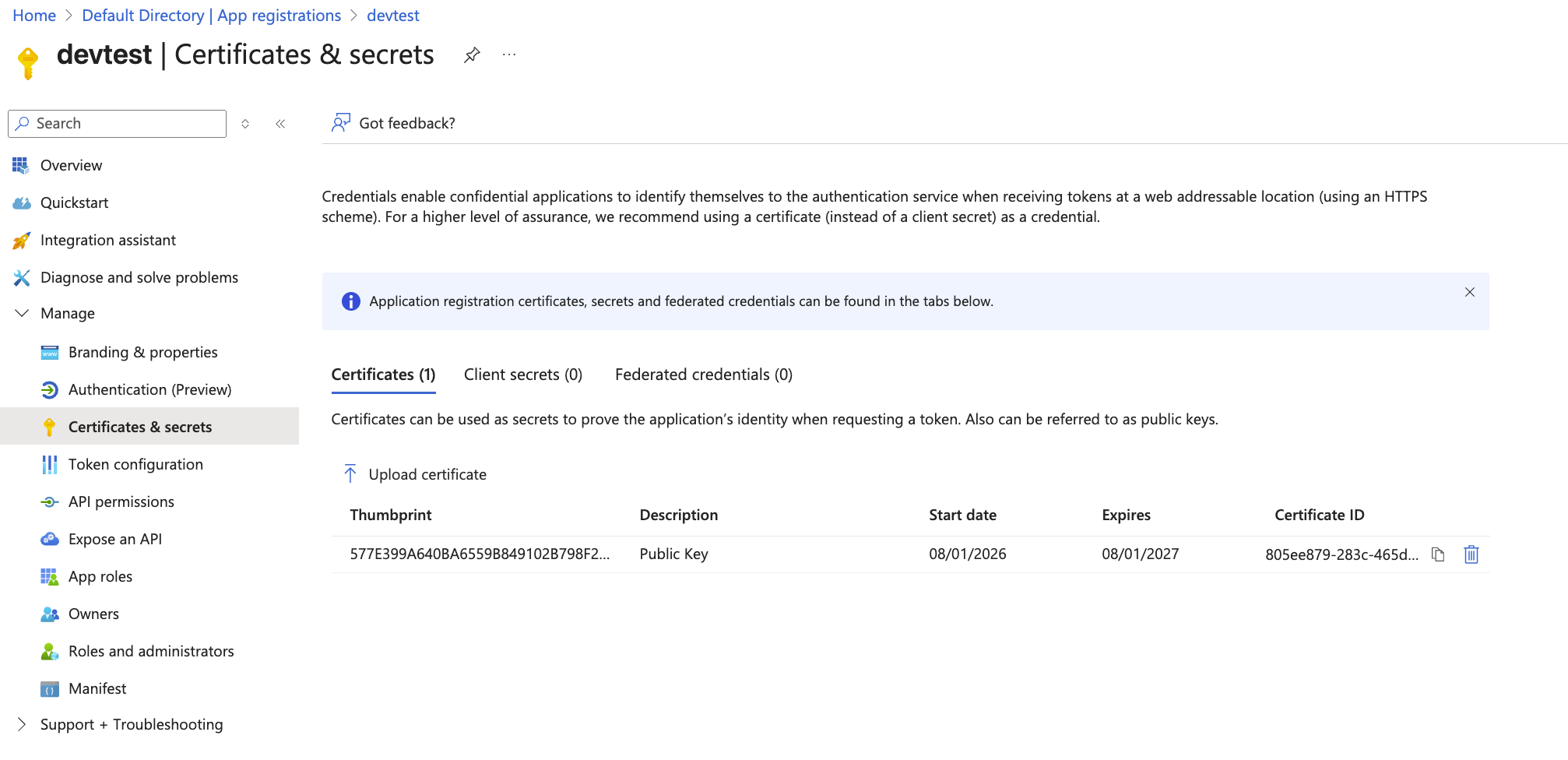
In your app registration, navigate to **Certificates & secrets** > **Certificates** >
**Upload certificate**.
Upload `certificate.crt` and note the **Thumbprint** value displayed after upload.
 Navigate to your **Azure resource** > **Access control (IAM)** > **Add role assignment**.
Assign **Cognitive Services OpenAI User** role to your app registration.
[Learn more about Azure OpenAI RBAC](https://learn.microsoft.com/en-us/azure/ai-services/openai/how-to/role-based-access-control)
Assign **Azure AI User** role to your app registration.
[Learn more about Azure AI Foundry RBAC](https://learn.microsoft.com/en-us/azure/ai-foundry/concepts/rbac-azure-ai-foundry)
Navigate to your **Azure resource** > **Access control (IAM)** > **Add role assignment**.
Assign **Cognitive Services OpenAI User** role to your app registration.
[Learn more about Azure OpenAI RBAC](https://learn.microsoft.com/en-us/azure/ai-services/openai/how-to/role-based-access-control)
Assign **Azure AI User** role to your app registration.
[Learn more about Azure AI Foundry RBAC](https://learn.microsoft.com/en-us/azure/ai-foundry/concepts/rbac-azure-ai-foundry)
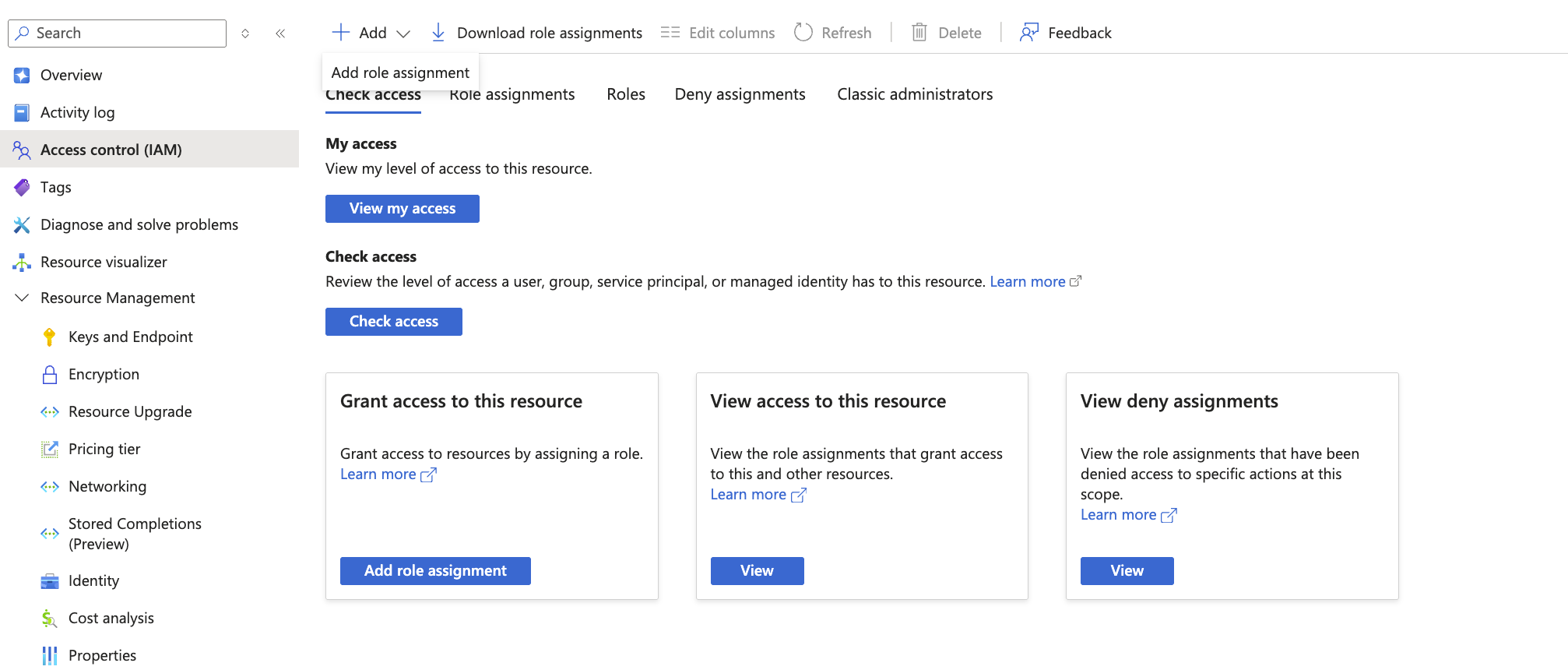 Role assignments may take a few minutes to propagate.
## TrueFoundry Configuration
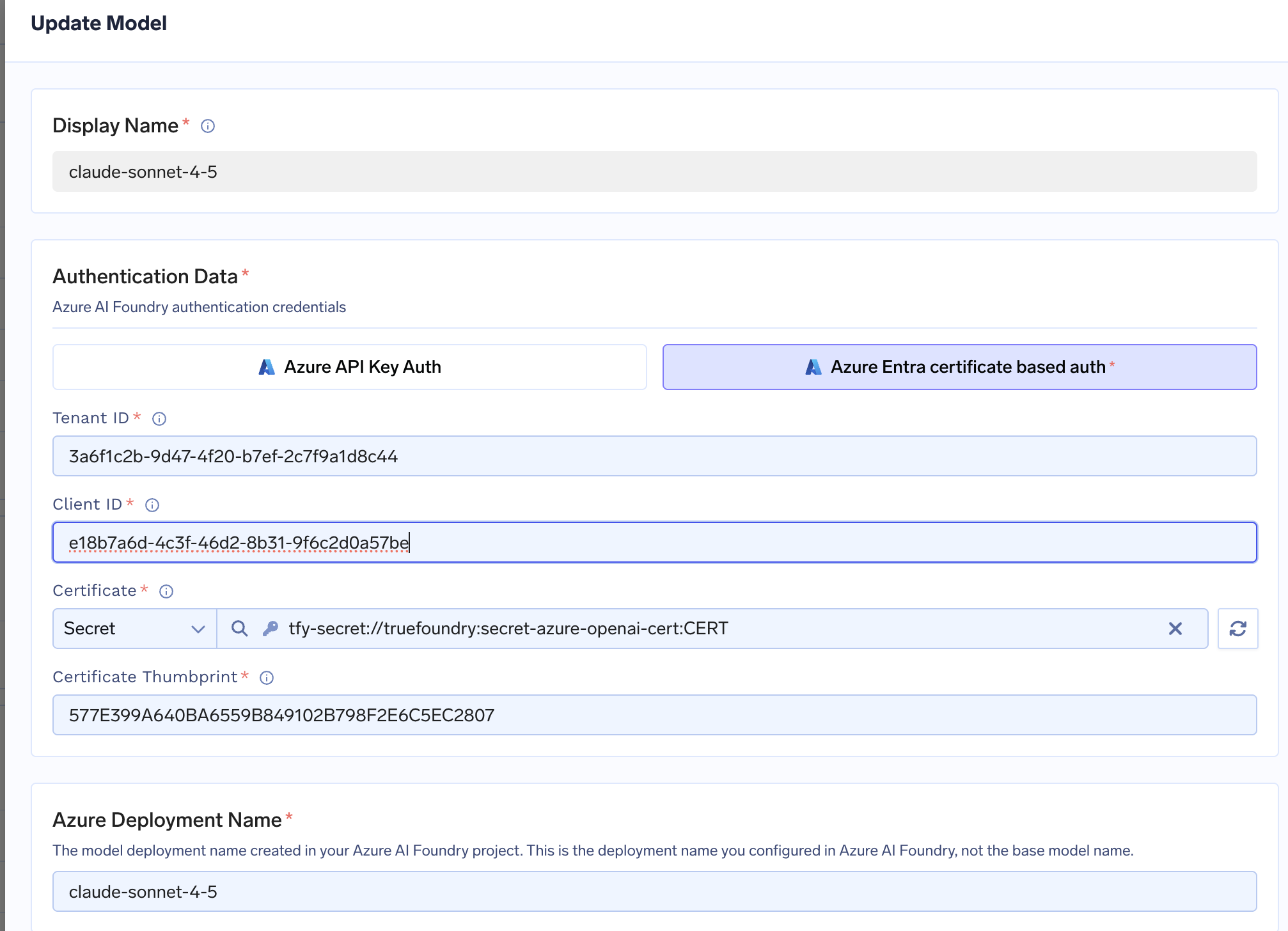
Navigate to **AI Gateway** > **Models** and select your provider (Azure OpenAI or Azure AI Foundry).
Click **Add Account** and select **Entra certificate based auth**. Fill in the following:
| Field | Description |
| ---------------------- | -------------------------------------------------------------------------------------------------------------- |
| Tenant ID | Directory (tenant) ID from app registration overview |
| Client ID | Application (client) ID from app registration overview |
| Certificate | Contents of the private key in PEM format. You can also use a [TrueFoundry Secret](/docs/manage-secrets) here. |
| Certificate Thumbprint | Thumbprint shown after uploading certificate to Azure |
For Azure AI Foundry, certificate authentication is configured at the **model level**,
not the account level.
Role assignments may take a few minutes to propagate.
## TrueFoundry Configuration
Navigate to **AI Gateway** > **Models** and select your provider (Azure OpenAI or Azure AI Foundry).
Click **Add Account** and select **Entra certificate based auth**. Fill in the following:
| Field | Description |
| ---------------------- | -------------------------------------------------------------------------------------------------------------- |
| Tenant ID | Directory (tenant) ID from app registration overview |
| Client ID | Application (client) ID from app registration overview |
| Certificate | Contents of the private key in PEM format. You can also use a [TrueFoundry Secret](/docs/manage-secrets) here. |
| Certificate Thumbprint | Thumbprint shown after uploading certificate to Azure |
For Azure AI Foundry, certificate authentication is configured at the **model level**,
not the account level.
 Add your models as described in the [Azure OpenAI](/docs/ai-gateway/azure-openai) or
[Azure AI Foundry](/docs/ai-gateway/azure-ai-foundry) documentation.
Test the connection using the Playground to verify authentication works.
## Reference Links
* [Register an Entra ID application](https://learn.microsoft.com/en-us/entra/identity-platform/quickstart-register-app)
* [Certificate credentials for application authentication](https://learn.microsoft.com/en-us/entra/identity-platform/certificate-credentials)
* [Azure OpenAI RBAC](https://learn.microsoft.com/en-us/azure/ai-services/openai/how-to/role-based-access-control)
* [Azure AI Foundry RBAC](https://learn.microsoft.com/en-us/azure/ai-foundry/concepts/rbac-azure-ai-foundry)
Add your models as described in the [Azure OpenAI](/docs/ai-gateway/azure-openai) or
[Azure AI Foundry](/docs/ai-gateway/azure-ai-foundry) documentation.
Test the connection using the Playground to verify authentication works.
## Reference Links
* [Register an Entra ID application](https://learn.microsoft.com/en-us/entra/identity-platform/quickstart-register-app)
* [Certificate credentials for application authentication](https://learn.microsoft.com/en-us/entra/identity-platform/certificate-credentials)
* [Azure OpenAI RBAC](https://learn.microsoft.com/en-us/azure/ai-services/openai/how-to/role-based-access-control)
* [Azure AI Foundry RBAC](https://learn.microsoft.com/en-us/azure/ai-foundry/concepts/rbac-azure-ai-foundry)