> ## Documentation Index
> Fetch the complete documentation index at: https://www.truefoundry.com/llms.txt
> Use this file to discover all available pages before exploring further.
# AWS Sagemaker
> Configure and use AWS Sagemaker models through TrueFoundry's AI Gateway
### Adding Models
This section explains the steps to add AWS Sagemaker models and configure the required access controls.
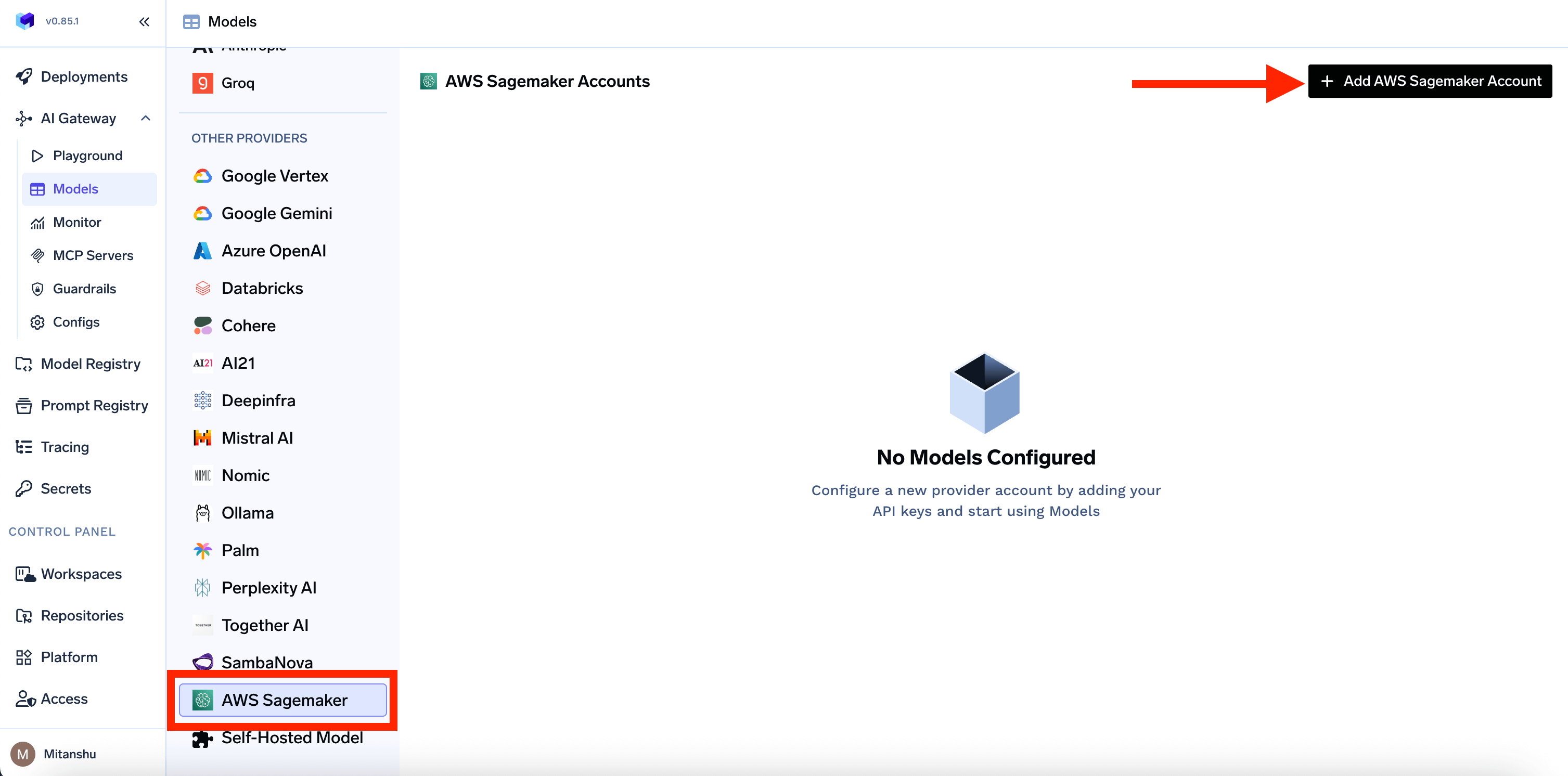
From the TrueFoundry dashboard, navigate to `AI Gateway` > `Models` and select `AWS Sagemaker`.
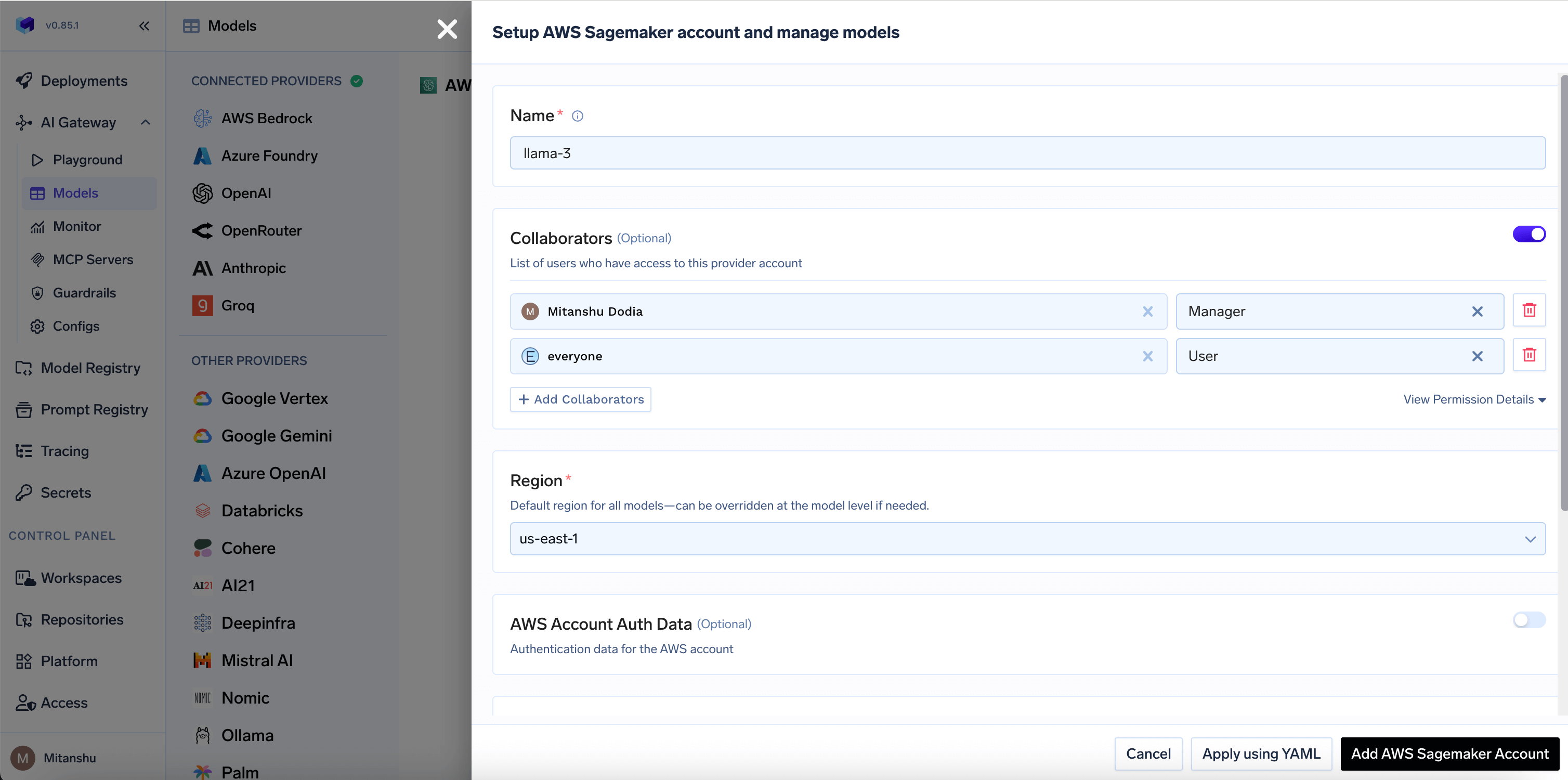
 Give a unique name for the Sagemaker account which will be used to refer later in the models. The models in the account will be referred to as `@providername/@modelname`. Add collaborators to your account. You can decide which users/teams have access to the models in the account (**User Role**) and who can add/edit/remove models in this account (**Manager Role**). You can read more about access control [here](/docs/ai-gateway/gateway-access-control).
 Select the default AWS region for the models in this account. \*\*The account-level region serves as the default for all models unless explicitly overridden at the model level. \*\*Provide the authentication details on how the gateway can access the Sagemaker models. Truefoundry supports both AWS Access Key/Secret Key and Assume Role based authentication. You can read below on how to generate the access/secret keys or roles.
**Using AWS Access Key and Secret**
1. Create an IAM user (or choose an existing IAM user) following [these steps](https://docs.aws.amazon.com/IAM/latest/UserGuide/id_users_create.html).
2. Add required permission for this user. The following policy grants permission to invoke all model in your available regions (To check the list of available regions for different models, refer to [AWS Sagemaker](https://docs.aws.amazon.com/sagemaker/latest/dg/api-permissions-reference.html?)).
3.
```json JSON lines theme={"dark"}
{
"Version": "2012-10-17",
"Statement": [
{
"Effect": "Allow",
"Sid": "InvokeAllModels",
"Action": [
"sagemaker:InvokeEndpoint",
],
"Resource": [
"arn:aws:sagemaker:::endpoint/"
]
}
]
}
```
4. Create an access key for this user [as per this doc](https://docs.aws.amazon.com/IAM/latest/UserGuide/access-keys-admin-managed.html#admin-create-access-key).
5. Use this access key and secret while adding the provider account to authenticate requests to the Sagemaker model.
**Using Assumed Role**
1. You can also directly specify a role that can be assumed by the service account attached to the pods running AI Gateway.
2. Read more about how assumed roles work [here](https://docs.aws.amazon.com/STS/latest/APIReference/API_AssumeRole.html).
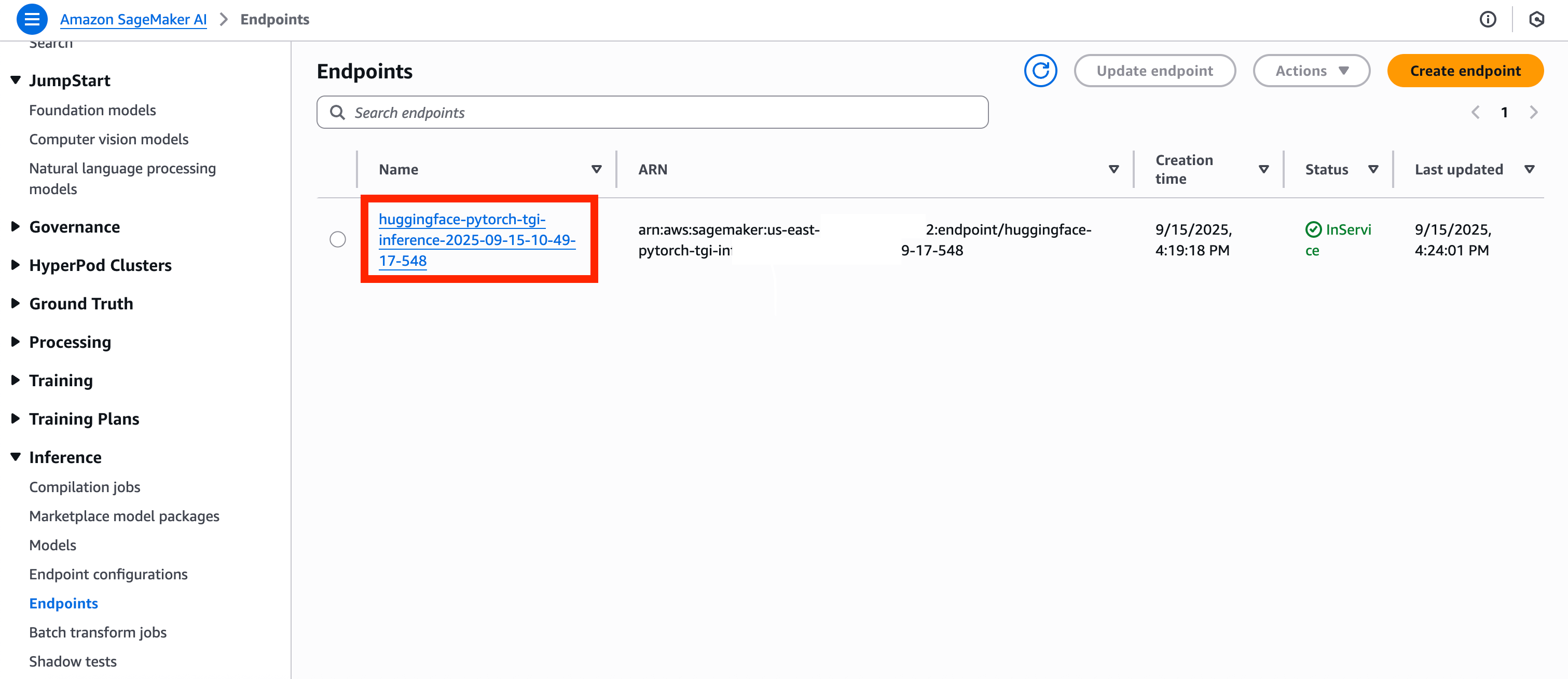
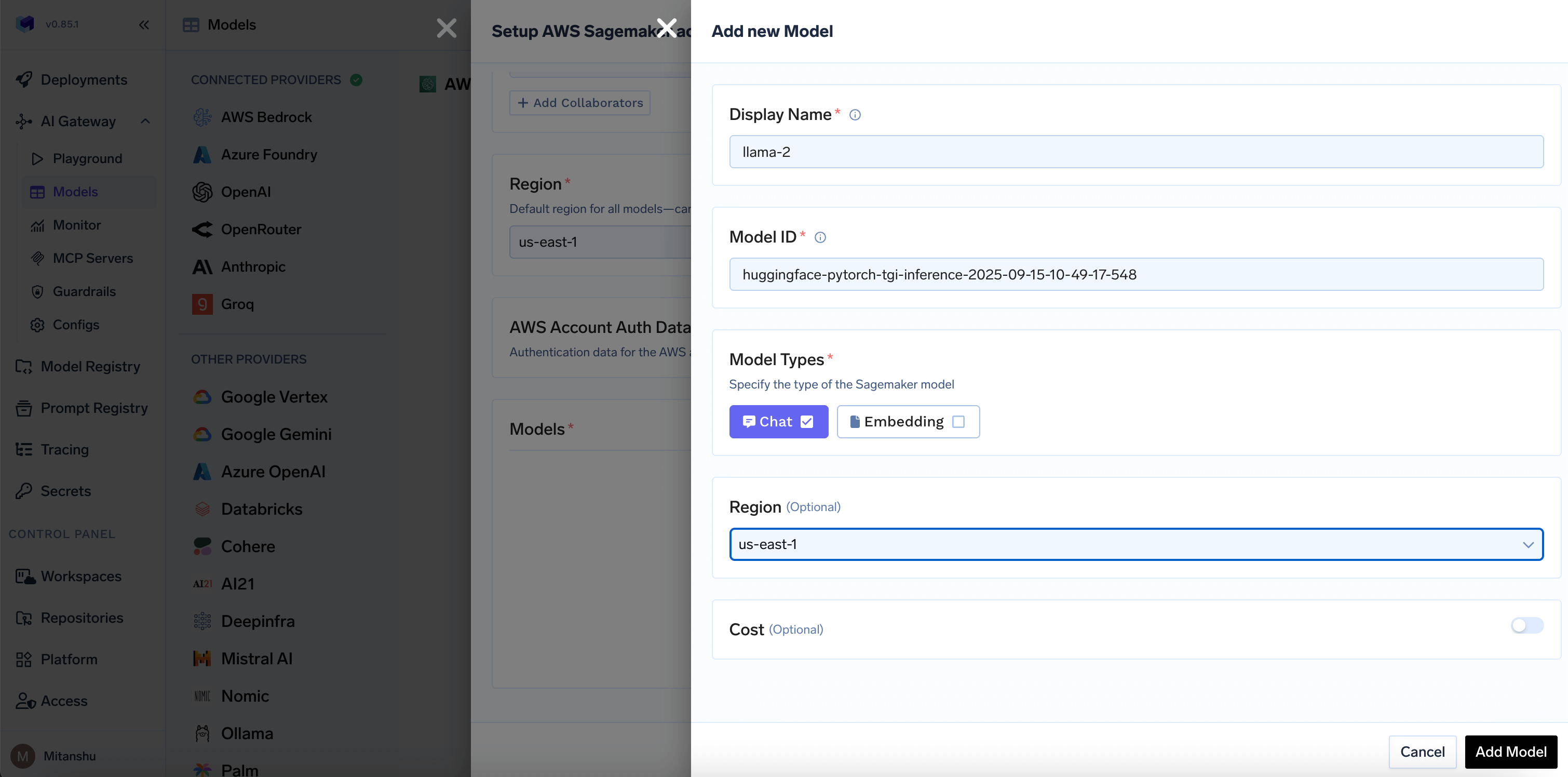
* To add the model, first enter the model name to save and access it in truefoundry. Then, enter the model ID and the region where the model is deployed.
* The model ID is the name of the endpoint in sagemaker. You can go to the endpoint page in sagemaker and copy the endpoint name.
Select the default AWS region for the models in this account. \*\*The account-level region serves as the default for all models unless explicitly overridden at the model level. \*\*Provide the authentication details on how the gateway can access the Sagemaker models. Truefoundry supports both AWS Access Key/Secret Key and Assume Role based authentication. You can read below on how to generate the access/secret keys or roles.
**Using AWS Access Key and Secret**
1. Create an IAM user (or choose an existing IAM user) following [these steps](https://docs.aws.amazon.com/IAM/latest/UserGuide/id_users_create.html).
2. Add required permission for this user. The following policy grants permission to invoke all model in your available regions (To check the list of available regions for different models, refer to [AWS Sagemaker](https://docs.aws.amazon.com/sagemaker/latest/dg/api-permissions-reference.html?)).
3.
```json JSON lines theme={"dark"}
{
"Version": "2012-10-17",
"Statement": [
{
"Effect": "Allow",
"Sid": "InvokeAllModels",
"Action": [
"sagemaker:InvokeEndpoint",
],
"Resource": [
"arn:aws:sagemaker:::endpoint/"
]
}
]
}
```
4. Create an access key for this user [as per this doc](https://docs.aws.amazon.com/IAM/latest/UserGuide/access-keys-admin-managed.html#admin-create-access-key).
5. Use this access key and secret while adding the provider account to authenticate requests to the Sagemaker model.
**Using Assumed Role**
1. You can also directly specify a role that can be assumed by the service account attached to the pods running AI Gateway.
2. Read more about how assumed roles work [here](https://docs.aws.amazon.com/STS/latest/APIReference/API_AssumeRole.html).
* To add the model, first enter the model name to save and access it in truefoundry. Then, enter the model ID and the region where the model is deployed.
* The model ID is the name of the endpoint in sagemaker. You can go to the endpoint page in sagemaker and copy the endpoint name.
 ### Inference
After adding the models, you can perform inference using an OpenAI-compatible API via the Playground or integrate with your own application.
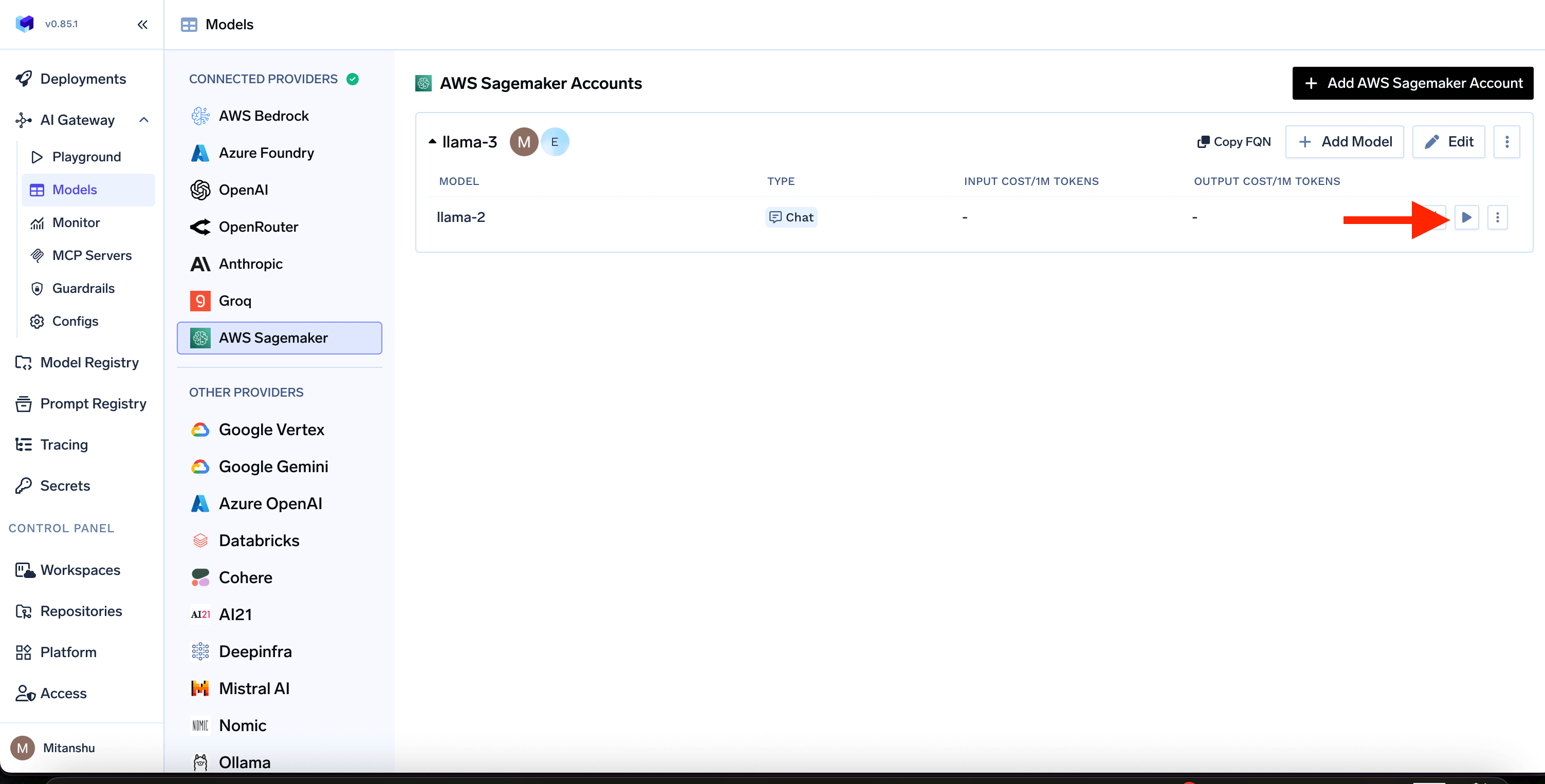
* To try in playground, click on the `Try in Playground` button.
Only chat completion is supported in Playground, to use embedding, you can
use the code snippet to integrate in your application.
### Inference
After adding the models, you can perform inference using an OpenAI-compatible API via the Playground or integrate with your own application.
* To try in playground, click on the `Try in Playground` button.
Only chat completion is supported in Playground, to use embedding, you can
use the code snippet to integrate in your application.
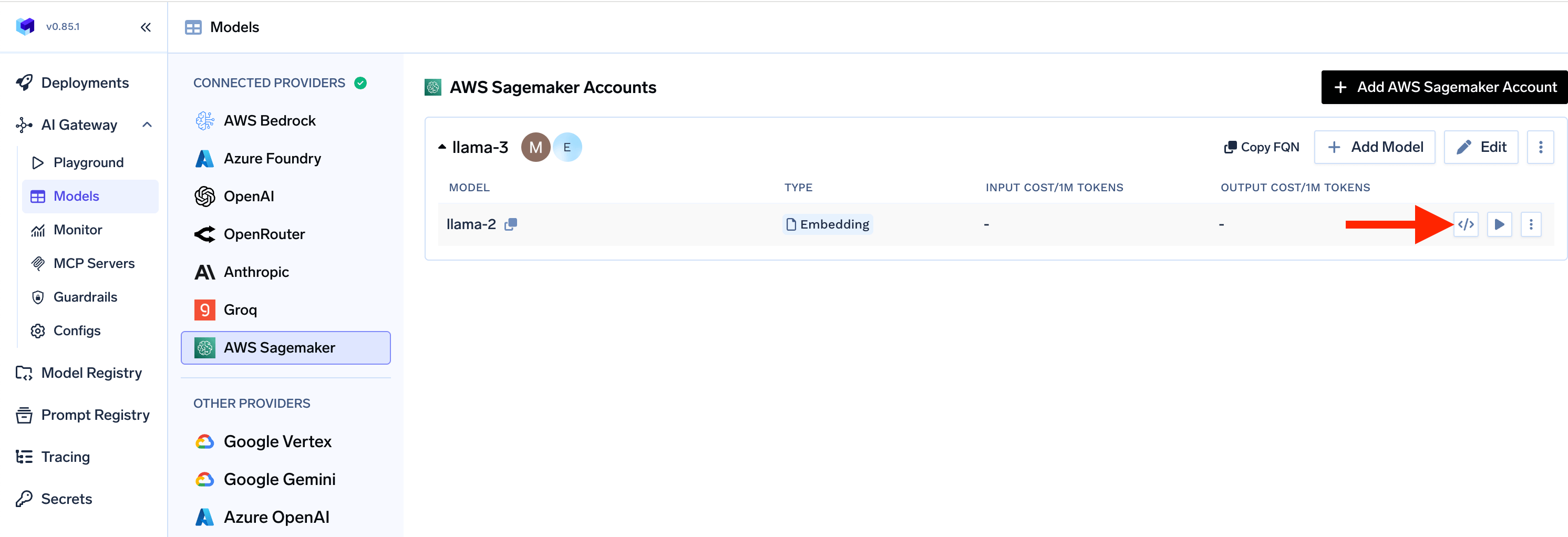
 * To get the code snippet to inference the model in your application using OpenAI-compatible API, click on the `Get Code Snippet` button.
 ## Access other models with gateway using proxy
If you want to access other models type like reranker or traditional machine learning models hosted on sagemaker, you can use the proxy endpoint to access them by using truefoundry gateway.
To use the proxy endpoint, you can use the following endpoint to proxy request via truefoundry gateway:
```
{GATEWAY_BASE_URL}/v1/endpoints/{modelId}/invocations
```
Here, `{modelId}` is the model id of the model you want to access, you can get it from the endpoints page in sagemaker.
Also you have to give the provider name in the header in the following format:
```
X-TFY-PROVIDER-NAME: sagemaker
```
Also create a sagmaker provider integration in truefoundry gateway and select the type of model as embeddings or chat.
you can see the example below on how to proxy the request to model in python:
```python lines theme={"dark"}
import requests
import json
URL = "{GATEWAY_BASE_URL}/v1/endpoints/{modelId}/invocations"
API_KEY = "your-truefoundry-api-key"
headers = {
"Content-Type": "application/json",
"Authorization": f"Bearer {API_KEY}",
"X-TFY-LOGGING-CONFIG": '{"enabled": true}'
"X-TFY-PROVIDER-NAME": "sagemaker" # sagemaker-provider-name
}
payload = {
"model": "sagemaker/modelId", # Your TrueFoundry Model name
... # other input request parameters which are supported by the model
}
response = requests.post(URL, headers=headers, json=payload)
print(response.json())
```
### FAQ:
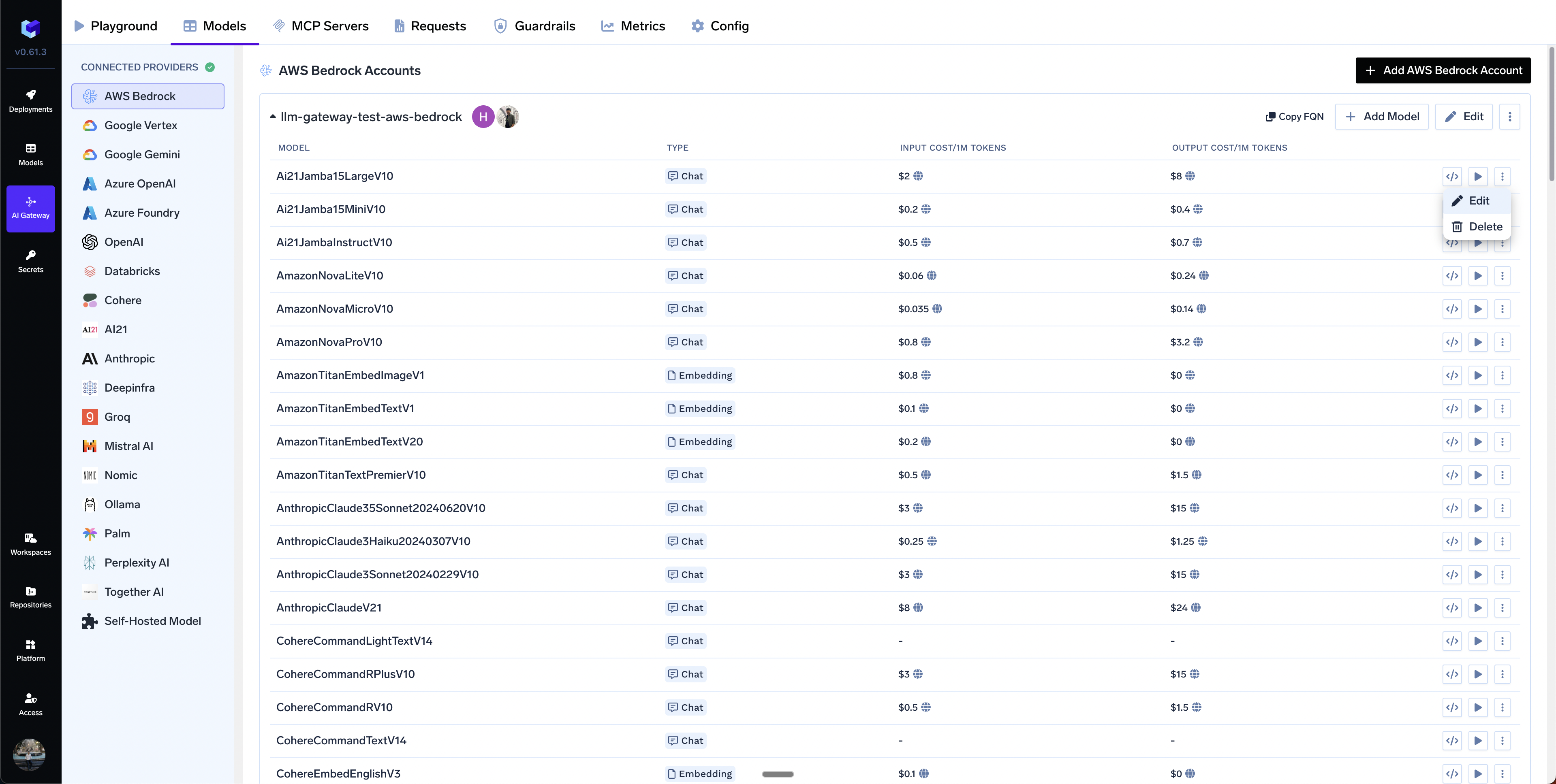
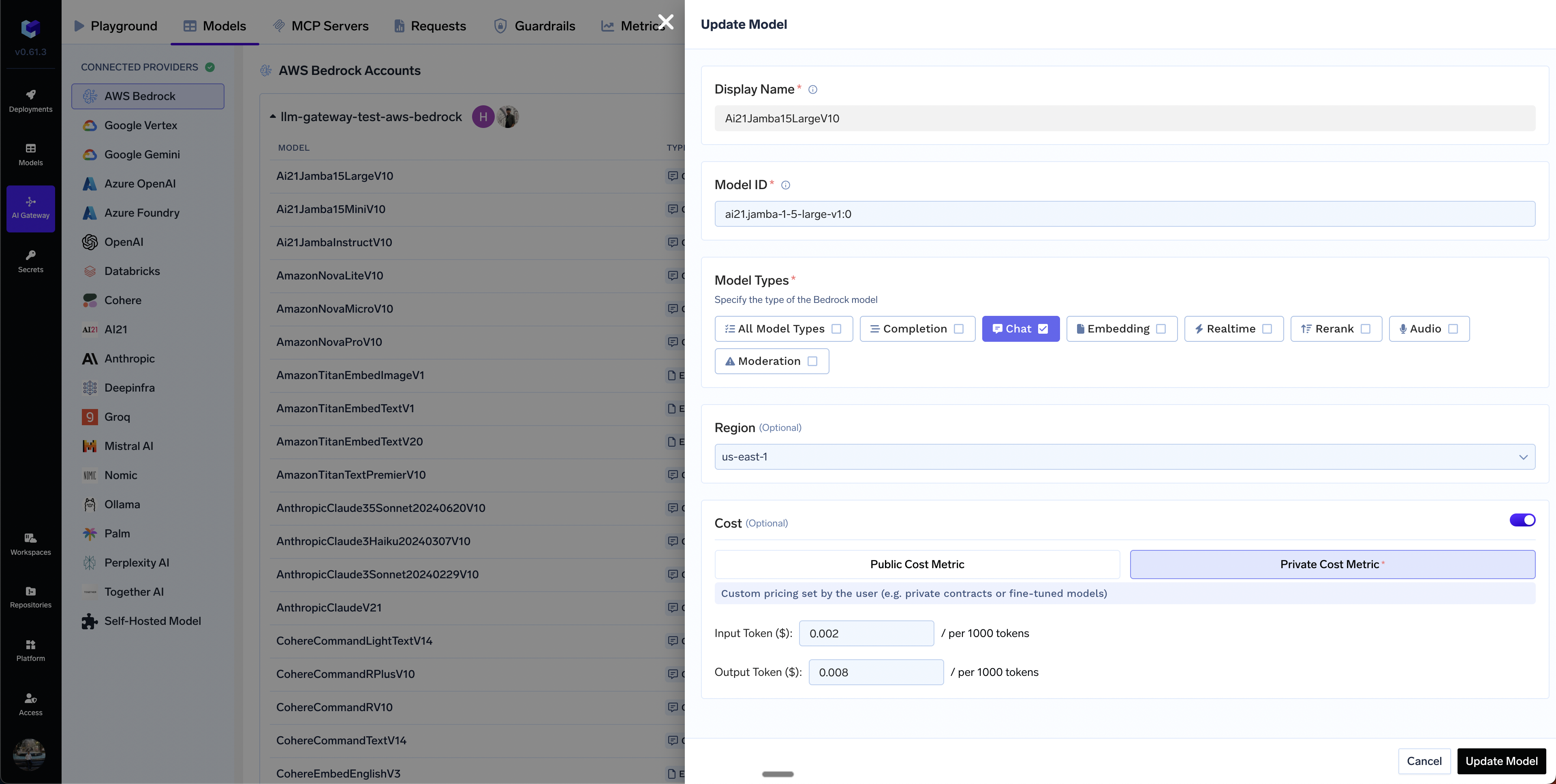
In case you have custom pricing for your models, you can override the default cost by clicking on Edit Model button and then choosing the `Private Cost Metric` option.
## Access other models with gateway using proxy
If you want to access other models type like reranker or traditional machine learning models hosted on sagemaker, you can use the proxy endpoint to access them by using truefoundry gateway.
To use the proxy endpoint, you can use the following endpoint to proxy request via truefoundry gateway:
```
{GATEWAY_BASE_URL}/v1/endpoints/{modelId}/invocations
```
Here, `{modelId}` is the model id of the model you want to access, you can get it from the endpoints page in sagemaker.
Also you have to give the provider name in the header in the following format:
```
X-TFY-PROVIDER-NAME: sagemaker
```
Also create a sagmaker provider integration in truefoundry gateway and select the type of model as embeddings or chat.
you can see the example below on how to proxy the request to model in python:
```python lines theme={"dark"}
import requests
import json
URL = "{GATEWAY_BASE_URL}/v1/endpoints/{modelId}/invocations"
API_KEY = "your-truefoundry-api-key"
headers = {
"Content-Type": "application/json",
"Authorization": f"Bearer {API_KEY}",
"X-TFY-LOGGING-CONFIG": '{"enabled": true}'
"X-TFY-PROVIDER-NAME": "sagemaker" # sagemaker-provider-name
}
payload = {
"model": "sagemaker/modelId", # Your TrueFoundry Model name
... # other input request parameters which are supported by the model
}
response = requests.post(URL, headers=headers, json=payload)
print(response.json())
```
### FAQ:
In case you have custom pricing for your models, you can override the default cost by clicking on Edit Model button and then choosing the `Private Cost Metric` option.