

Overview
When we interact with the prompt in the AI gateway playground, the playground UI renders the tool calls, their arguments, results and the LLM responses as they are streamed back from the gateway. If you want to do the same in your own application, or a different UI apart from the TrueFoundry playground, you can use the Agent API described below.Quickstart
Get started with the Agent API in 3 simple steps:Set your API token and base URL
Make your first request
- HTTPie
- curl
Understand the response
You’ll receive a streaming response with:- Assistant content: The LLM’s text response
- Tool calls: When the assistant decides to use tools (like web search)
- Tool results: Output from executed tools
- Follow-up: The assistant processes tool results and continues
web_search tool to find image generation models and provide recommendations.
Request examples
Call with registered MCP servers
When you have MCP servers already registered in your TrueFoundry AI Gateway, you can reference them using theirintegration_fqn:
- HTTPie
- curl
Use external MCP servers
You can connect to any MCP server accessible without pre-registering it in the gateway:- HTTPie
- curl
Override auth headers
You can override authentication per MCP server entry using either:- The
headersfield inmcp_serversarray (recommended): Pass headers directly in the request body for each MCP server entry - The
x-tfy-mcp-headersheader: Pass headers in the HTTP request header using FQN-based format
Method 1: Using headers field (Recommended)
- HTTPie
- curl
Method 2: Using x-tfy-mcp-headers header (Registered servers only)
For Agent API requests with registered MCP servers, you can also pass custom headers using the x-tfy-mcp-headers HTTP header. This method uses an FQN-based format where you specify headers for each MCP server using its fully qualified name (FQN).
Format: The header value should be a JSON string with the structure:
- Use the server’s full FQN as the key (e.g.,
truefoundry:mcp-server-group:remote-mcp-servers:mcp-server:hf-mcp-server) - You can copy the FQN from the MCP server details page using the Copy FQN button on the top right
- For virtual servers, use the underlying remote server’s FQN
- Headers specified here override any default authentication configured for the MCP server
- Python
- curl
Important differences:
- The
x-tfy-mcp-headersformat for Agent API is different from the MCP Gateway format - Agent API always uses full FQN as keys (e.g.,
truefoundry:mcp-server-group:remote-mcp-servers:mcp-server:hf-mcp-server) - This method only works with registered servers (
integration_fqn). For external servers, use theheadersfield in themcp_serversarray
API Reference
Request parameters
Request Parameters
About tool call iterations: An iteration represents a full loop of user → model → tool call → tool result → model. The
iteration_limit sets the maximum number of such loops per request to prevent runaway chains.MCP server configuration
Each entry in themcp_servers array should include:
MCP Server Parameters
integration_fqn or url must be provided, but not both.
Tool configuration
Each entry in thetools array should include:
Tool Parameters
Streaming Response
The Chat API uses Server-Sent Events (SSE) to stream responses in real-time. This includes assistant text, tool calls (function names and their arguments), and tool results.Both assistant content and tool call arguments are streamed incrementally across multiple chunks. You must accumulate these fragments to build complete responses.
Compatibility: The streaming format follows OpenAI Chat Completions streaming semantics. See the official guide: OpenAI streaming responses. In addition, the Gateway emits tool result chunks as extra delta events (with
role: "tool", tool_call_id, and content) to carry tool outputs.Quick Reference
Event Quick Reference
SSE Envelope
Each SSE line delivers a JSON payload:Event Types
Content events: assistant text
Content events: assistant text
First chunk (role appears, empty content):Subsequent chunk(s) with actual text:
- Alternative: some models include the
roleon every chunk:
Role emission differs by provider. Do not assume the role is only present on the first chunk. Clients should set the role on the first chunk and carry it forward for subsequent chunks, and safely ignore repeated role fields on later chunks.
- Concatenate
delta.contentacross chunks to build the full assistant message.
Tool call events: function name then arguments
Tool call events: function name then arguments
Start of a tool call (function name announced):Arguments streamed in later chunk(s):
- Append
function.argumentsfragments perindexto reconstruct full arguments. - Completion of this phase is indicated by
finish_reason: "tool_calls".
Anthropic-specific behavior: Anthropic may stream an empty string for tool-call arguments (
"arguments": ""). When invoking the tool, their API expects a valid JSON object. Normalize empty arguments to {} before issuing the call.Tool result events: tool output
Tool result events: tool output
delta.role == "tool"indicates a tool result chunk.- The
contentis a JSON string; parse it to extract text or structured data if needed.
Error events
Error events
Processing Streaming events
How to Get the Code Snippet
You can generate a ready-to-use code snippet directly from the AI Gateway web UI:- Go to the Playground or your MCP Server group in the AI Gateway.
- Click the API Code Snippet button.
- Copy the generated code and use it in your application.
The generated code snippet from the playground will only show the last assistant message, and will not show tool calls and results from that conversation.
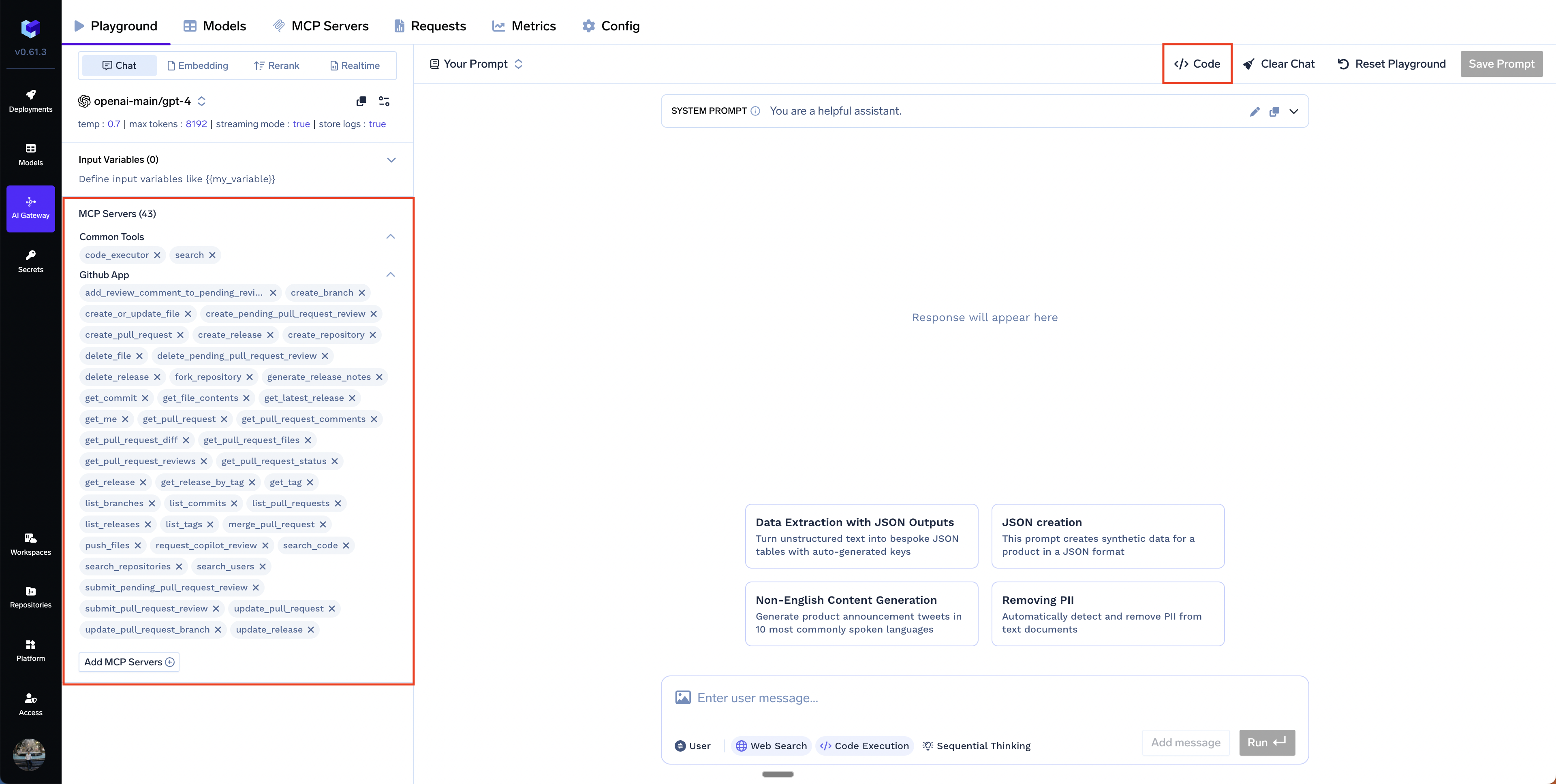
Agent API Code Snippet - Button
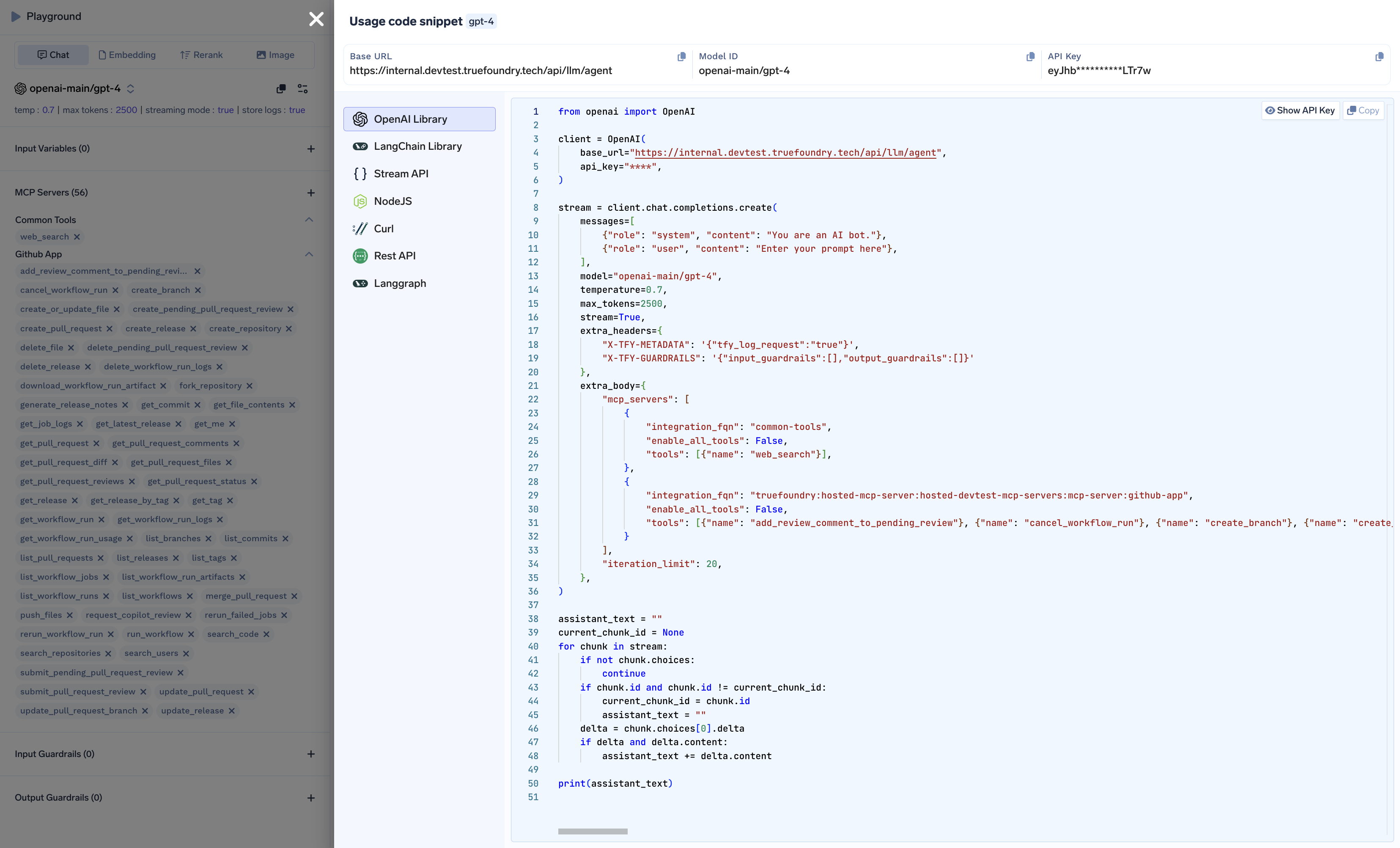
Agent API Code Snippet - Example
Process streaming in code
OpenAI Client example
You can use the OpenAI client library with a custom base URL to handle the streaming response:Configure client
- Base URL: Point this to your Gateway Base URL with the
/agentpath which directly targets the Agent API.
Define common Agent configuration
- model: Provider/model routed via Gateway.
- mcp_servers: Select specific tools from an MCP server.
- iteration_limit: Max agent tool-call iterations.
Collect streamed chunks into full messages
Theget_messages function processes the streaming response to reconstruct complete messages. Let’s break it down:
1. Initialize and detect new messages
2. Handle tool result messages
role: "tool" and include a tool_call_id that links the result back to the specific tool call that generated it.
3. Accumulate message content
4. Handle tool calls (function name and arguments)
- Tool calls are streamed with function names first, then arguments in chunks
- Each tool call has an
indexto handle multiple simultaneous tool calls - We accumulate the
argumentsstring as it streams in (like{"query": "Python tutorials"})
5. Apply Anthropic fix for empty arguments
"" for tool arguments, but the OpenAI format expects "{}" for empty JSON objects. We normalize this.
Helper to send/merge a turn
Run a conversation and print outputs
Complete working code
Complete working code
Tool call flow
The streaming API follows this flow when tools are involved:- Assistant Response Start: Initial content from the LLM (streamed)
- Tool Call Event: Function name, then arguments streamed incrementally
- Tool Execution: The gateway executes the complete tool call
- Tool Result Event: Results are streamed back
- Assistant Follow-up: The assistant processes results and continues
Stream termination
The stream ends with either:- A
[DONE]message indicating completion - An error event if something goes wrong
- Client disconnection